Home
Up
Initial Implementation
| |
InRoads: Commands and Symbology
The hardest part of managing InRoads is keeping the many commands outputting
engineering and graphics that are correct for the designer's needs.
This is difficult for a number of reasons
- the breadth of scope of InRoads (and updates in function) makes is
unlikely that the administrator can anticipate the users needs throughout
the product
- different users, different regions, different projects often have
different needs
- plansheets often vary in requirements (e.g., scale)
- engineering alternatives often require different settings
- users change as they become more familiar with the product
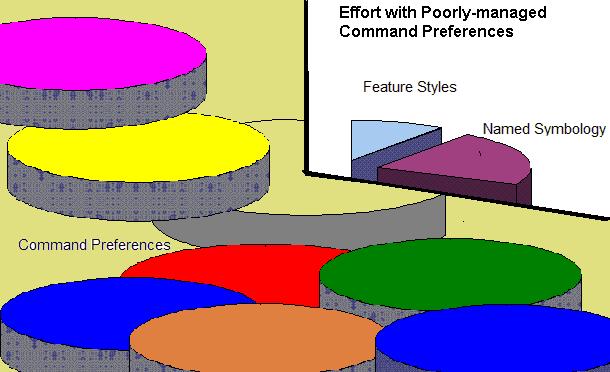
| In a well-managed InRoads environment the
Feature Style - Named Symbology - Command Preference effort might look
like this:
|
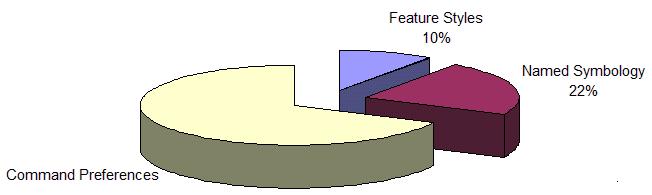 |
| In a well-managed InRoads environment the
Feature Style - Named Symbology - Command Preference effort might look
like the graphic to the right:
Command Preferences, that are not well-managed tend to multiply and mutate
rapidly. They quickly get out of control. Managing the
Preferences soon requires a grossly disproportionate percent of the effort
or gets abandoned entirely. |
 |
There are a number of ways to keep
Command Preferences manageable, but the most far-reaching is using Named
Symbology EVERYWHERE a command calls for an element's symbology. InRoads
allows symbology to be defined via its components (level, color, etc.) instead
of Named Symbology, but it makes QC and management extremely difficult.
Symbology in Commands
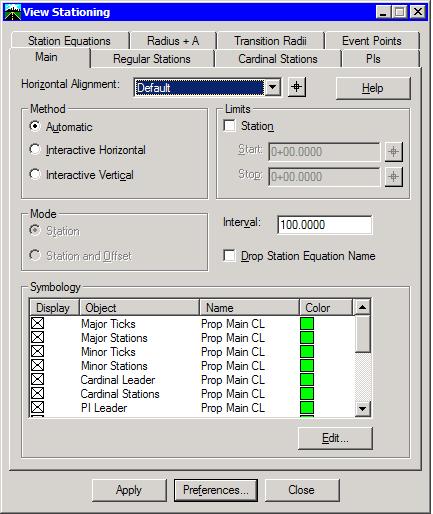
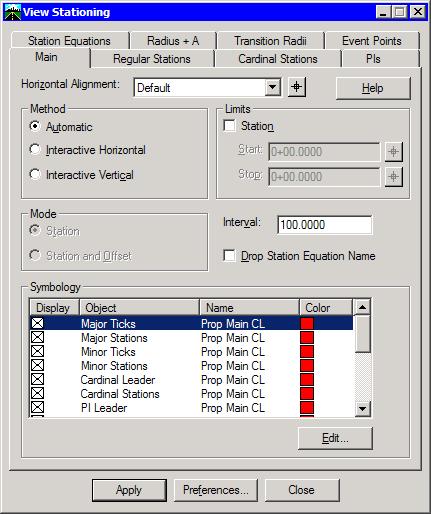
| The form to the right shows the View Stationing
command.
Notice the Symbology frame at the bottom. This is where all the
graphics' color, level, text attributes, etc. are set. There are
sixteen different "objects" requiring symbology definition in
this command.
The Name header in the Symbology list shows a Named Symbology if one is
used. If no Named Symbology is used, it is blank.
This property allows some very easy Quality Control as shown in the
following screenshots.
Assume the user Edits the Major Ticks object. |
 |
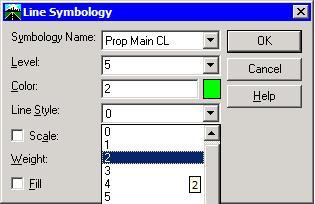
| He changes the Line Style from the standard 0
to 2. |
 |
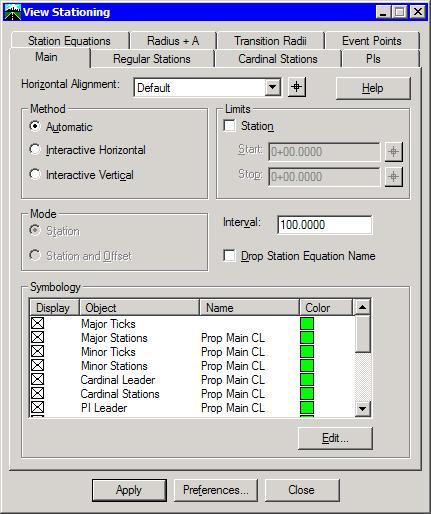
| Since the definition of the Major Ticks object
no longer is based on the Prop Main CL Named Symbology, the Name is left
blank.
Only a cursory glance shows that something may be out of standard. |
 |
| Another advantage of using Named Symbology
throughout commands is in case standards change (take for example, if the
software is rolled out with numbered levels and then later changed to a
new Named Level Convention).
A single change to the Named Symbology automatically updates everywhere
it is defined in the software.
The example to the left shows the change in color that is automatically
updated when the color is changed in the Named Symbology.
Remember: there are 16 objects here and this command may have 10
different pre-defined variations (Preference sets). In theory, this
single command could have 160 different settings changes instead of one if
Named Symbologies were not defined properly.
|
 |
This approach also works extremely well for consultants who must conform to
multiple agency standards. In theory, the changes can be confined merely
to the Named Symbology definitions, each agency having their own Named Symbology
file (fragment).
|